Thanks Smapti. How did you find the offending sample?
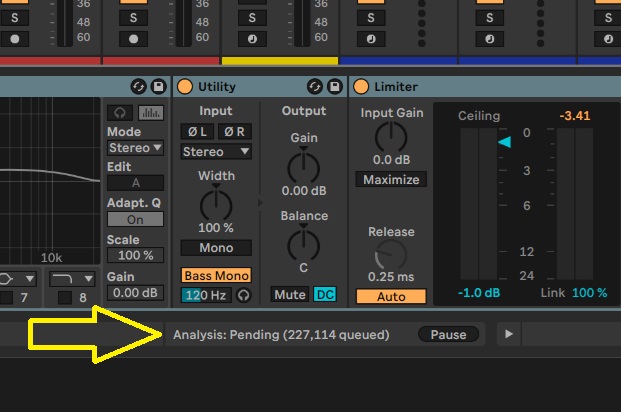
And a similar-ish problem on the Mac, I don’t get a crash but the scanning/queueing function always finds 200k files and never actually starts working, just gets stuck on pending. Opened a ticket on this in the beta, but didn’t get resolved - guess I should update to confirm that it’s still an issue in the full release.
Quite annoying, because it means stuff like new max devices I drop in my user library don’t show up properly and I end up having to drop them in manually from finder.
Have you looked into the local crash dump?
Text logs will likely note what it crapped out on.
1 Like
Who knows
No I haven’t. I’ll do that in the morning.
I should have added this earlier - Ableton doesn’t actually crash, the Scanner just gets to ‘227,114 queued’ then starts all over. It loops back.
1 Like
Does anyone know when the best time to buy/upgrade live? Does Ableton do Black Friday sales?
I had it run couple of times on mac too but eventually it went away, it also doing deep rescan of the plugins, I had some plugins crashing during that process but with dismiss menus, so after couple of clicks here and there and several rescans it works with no issues, unfortunately it could be different on windows so no idea…
yeah I think around 20% discounts, but check Sweetwater or other retailers, sometimes they have better deals
3 Likes
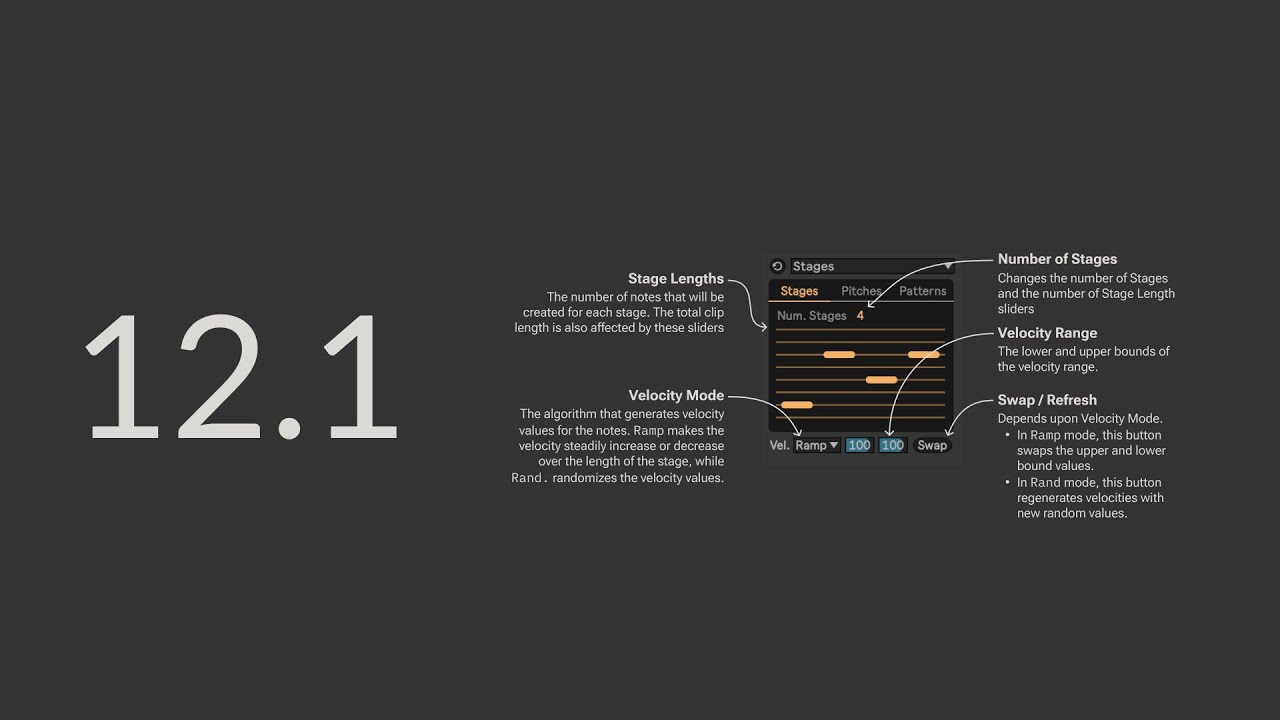
I just saw this pop up on YT this morning and thought it might be of interest/use to some here updating to 12.1.
Phillip’s Midi Tools bundle is included with 12.1 and in the video he talks about the tools, updated versions of the Midi Tools Generators (updated since the Beta versions of 12.1), his other m4l plugins and also a new free manual he’s created to help to better understand the Midi Tools Bundle.
I’ve got no affiliation with him, I just admire and appreciate his work.
19 Likes
Hope someone can shed some light on this.
Coming from Cubase were I use Korg Nano Kontrol Studio and it is set up like this:
Fader1 does volume fader of selected track.
Fader 2-8 do: Sends 1-7 of selected track.
I use keyboard arrows to select tracks and I use many key commands and some buttons on the Nano Kontrol.
I know scrolling tracks works good with keyboard in Live 12. And using Tab and Shift+Tab I can scroll to sends etc. But anybody know if a controller could be setup like above in Live 12?
If not what would be the easiest option to buy that comes close. I don’t need pads to trigger clips / scenes because I mainly work in arrangement mode so big controllers like Launchpad Pro’s seem overkill to me.
I managed to set my Korg Nano Kontrol Studio to Ableton Live mode but that is like Mackie Control which means (I know you know…) : fader 1-8: volume track 1-8 and use an arrow to go to tracks 9-16 etc. which I don’t find easy, no control for sends.
Due to chronic brain issue I often sit back so I can rest my head, so a keyboard next to me and a small controller on my lap works best.
Any suggestion is welcome.
Thanks in advance.
1 Like
sounds like you want to look for a surface script, I found one 3rd party on github, check it out, if that doesn’t work could look for another one
1 Like
Thanks, I will have a look. Found this:
https://help.ableton.com/hc/en-us/articles/206240184-Creating-your-own-Control-Surface-script
Will give it a go. Live 12 demo works for 3 more days, plan to buy at BF, so I might have to try then.
creating a custom script can work too, I used to do it with my EC4 before and it works, very simple to make one too! usually the python ones offer more functionality
1 Like
The delay control feature of the OT is amazing and fun. It is so musical and expressive being able to mash buttons and stutter tracks or groups of tracks. It would be amazing if Ableton had that capability in a clean non-jank way.
I thought the same thing, so I created it. It’s called Javelina.
7 Likes
yes, so the way it works is you need to find the UserConfiguration.txt file according to the location on your OS, the instructions are in the link you’ve previously used.
for example on mac it’s: /Users/[Username]/Library/Preferences/Ableton/Live x.x.x/User Remote Scripts
once you find the file you need to fill the CC values of the faders/encoders to match them to the functions in that config file, and set the global channel to the one that the controller sends the midi data on, you can use something like MidiMonitor to figure these out.
for example, once you have the channel and CC numbers, you fill the UserConfig like that:
[Globals]
# The primary MIDI channel that the controller uses in
# the range of 0-15.
GlobalChannel: 1 <--channel goes here


...
[MixerControls]
# The settings below allow you to control various Mixer
# features of 8 Tracks at a time.

# VolumeSlider1-VolumeSlider8 control Track volume.
VolumeSlider1: 1 <-- ccs go here
VolumeSlider2: 2
VolumeSlider3: 3
VolumeSlider4: 4
VolumeSlider5: 5
VolumeSlider6: 6
VolumeSlider7: 7
VolumeSlider8: 8
# Send1Knob1-Send1Knob8 control Track Send A.
Send1Knob1: 9
Send1Knob2: 10
Send1Knob3: 11
Send1Knob4: 12
...

# NextBankButton and PrevBankButton select the next or
# previous bank of 8 Tracks for the controls above to
# control.
NextBankButton: 13
PrevBankButton: 14
...

# MasterVolumeSlider controls Master Track volume.
MasterVolumeSlider: 15
MasterSliderChannel: 16
and so on, every function available is listed in that file and will correspond to a predefined CC and Global Channel, so you select one channel and set the mapping accordingly.
after that you’re just enabling your script from the Setup and that’s it, should work, worst case restart Live
3 Likes
I can’t believe there’s no pan control in the UserConfiguration.txt. Seems odd.
I think it’s because Pan is ± value and not absolute, I guess it’s just a simplified version that meant to be as compatible as possible. proper surface script should have this without issues, I can’t believe there’s no script for the Korg Nano, it’s pretty common controller
2 Likes
Thanks.
I want to use fader 1 for volume of selected track and use it for volume of all tracks.
I want to use fader 2 for send 1 of selected track and use it for send 1 on all tracks.
If I’m not mistaken this scripting brings a similar outcome than using Mackie Control protocol, which is: My faders 1-8 control volume of track 1-8.
This is not what I am looking for.
In the midi map I find:
SELTRACKREC = -1 # Arm Selected Track
SELTRACKSOLO = -1 # Solo Selected Track
SELTRACKMUTE = -1 # Mute Selected Track
So could I insert SELTRACKVOL = 43
SELTRACKPAN = 44
SELTRACKSEND1 = 45
SELTRACKSEND2 = 46
etc
Or is this not possible in Live 12?
the answer is in the file:
# The settings below allow you to control various Mixer
# features of 8 Tracks at a time.
that means you’re always focused on certain amount of tracks, you can remove the rest of the tracks and focus on single one and just shift focus left-right with
# NextBankButton and PrevBankButton select the next or
# previous bank of 8 Tracks for the controls above to
# control.
NextBankButton: -1
PrevBankButton: -1
but if you want that extra functionality you need a proper surface script…
Live can do that but the way it works is by creating this script, can’t say I have too much experience with that but it can be very powerful, there’s a full API of what you can do with a script here
1 Like
Thank you, alechko.
My Live 12 demo has 3 days left. I will buy at BF and then will try. You gave me a good start. 
2 Likes
Turned out I had a $50 coupon for Live, got it with the Korg Kontrol. Just bought the Standard upgrade from Lite. 


7 Likes