I’m having an “x” blinking in the flex menu before a sample and on top of the menu. Anybody has an idea what it might mean?
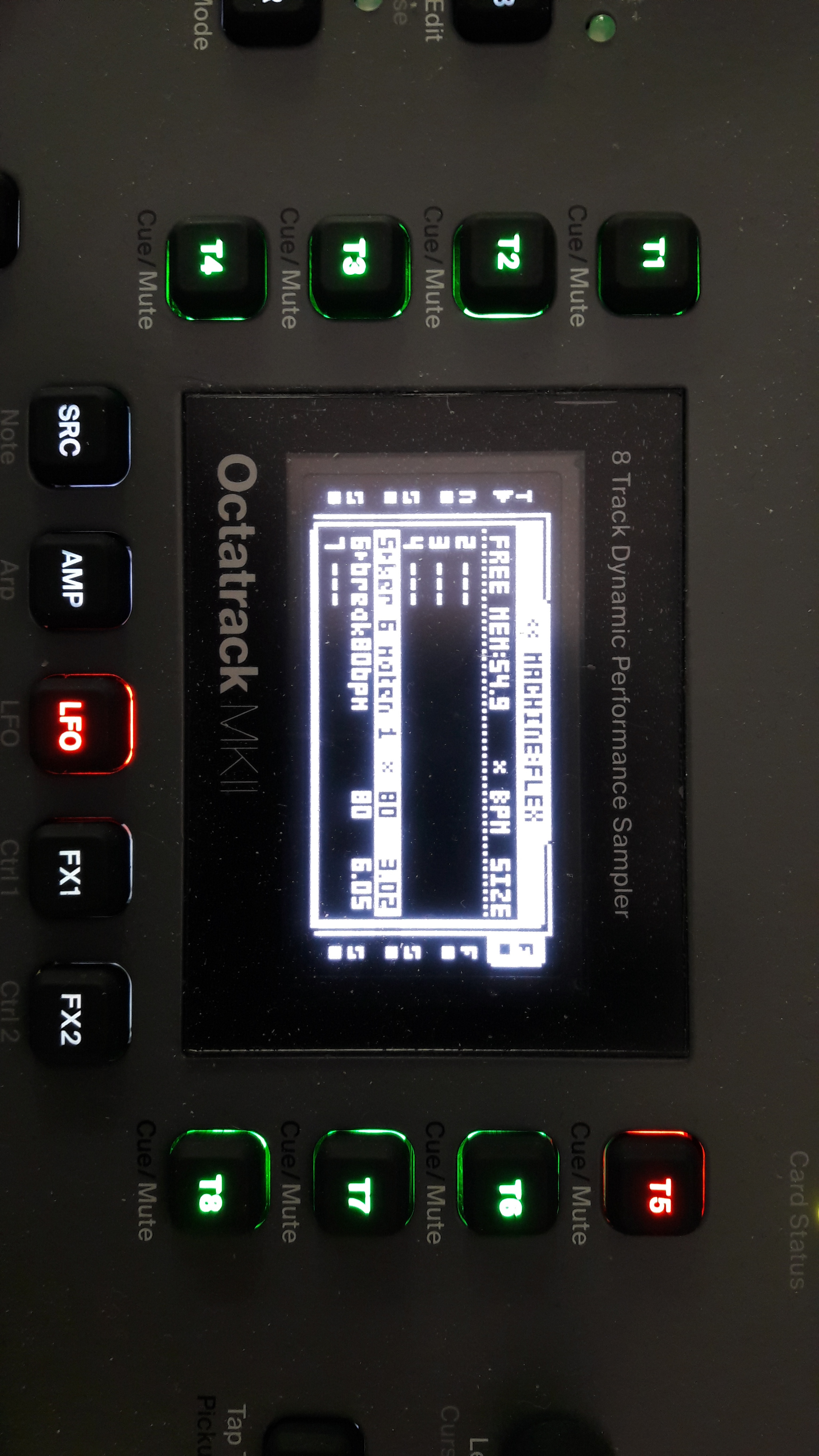
I guess that means the sample has been edited but has not been saved.
2 Likes
Not sure it was that. I saved the project and it was still there. I deleted the sample from the project and assigned it again to that slot and the cross was gone. No problem really. But still curious.
There is a blinking X in slots if the sample has been edited in Audio Editor EDIT menu, and not saved.
If you power cycle, the original sample will be loaded. No more blinking X.
2 Likes
So saving the project will not save the sample? Because it was still blinking after I saved the project.
Also, is slicing the sample or adjusting the tempo in the AED menu regarded as editing it? Never noticed that blink before then.

Sample settings (Trim, Slices, Attributes) are auto saved in the project for each slot.
There is also a file associated with the sample with these settings, created if you use SAVE SAMPLE SETTINGS, SAVE SAMPLE COPY or SAVE AND ASSIGN. You get something like
sample.ot, and the settings will be loaded with the sample in any project.
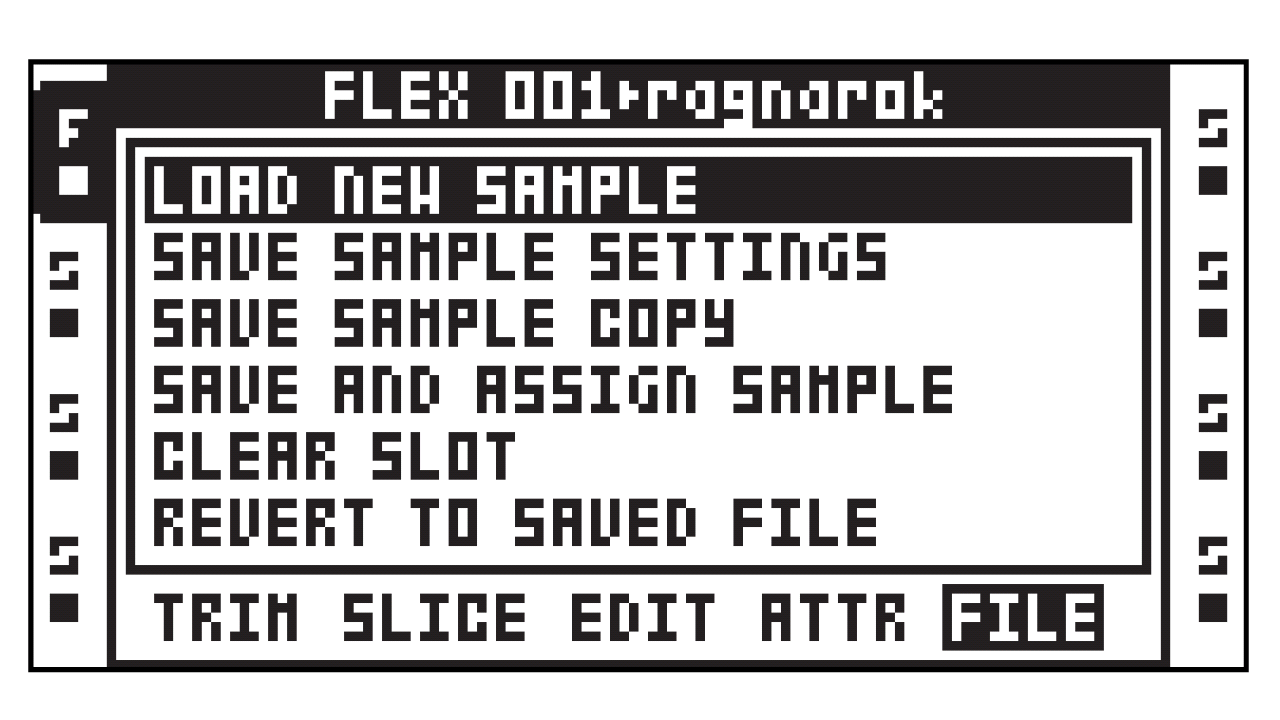
If you use Audio Editor EDIT, you change the sample itself, X blinking unless you save the sample with SAVE AND ASSIGN, ASSIGN TO SELF, or REVERT TO SAVED FILE, project change / power cycle. It is saved as a sample copy anyway. Original sample is not modified.
When you save a project, you make a copy of the auto saved project.
.work files are auto saved files.
.strd files are saved files.
6 Likes
Old thread, but I’m having a similar issue (blinking ‘x’) but even when I delete the recording buffer the blinking ‘x’ is still there, and also the track button blinks too. There’s seemingly nothing I can do to stop the track button from blinking. It doesn’t seem to cause any problems, but it’s a major distraction. Any thoughts?
Update: I’ve realized I can’t get any sound out of the track now either, even when I load a new sample. I’ve tested my other tracks and they are just fine. Can’t figure out why this one makes no sound? (also checked mixer to make sure not muted)
Is recording buffer assigned to the track ?
It means that the track is sent to CUE (CUE + TRACK).
1 Like
Not sure what you mean. The track (T4) was assigned to recording buffer 4. I modified the sample. That’s when the blinking started. Then I deleted the sample out of the buffer. And since then I can get no sound from that track even when I assign it to a sample slot with a sample.
Current status is the track 4 button is blinking and I get no audio from it.
Does anyone know what it means when a track button is blinking?
The blinking X is normal.
It should disappear after clearing the recording buffer or clear slot. It seems a display bug. (You can go to File Manager to solve it, maybe quicker tricks…)
Just told you above.
The blinking Track Button led is due to CUE send activation, and it’s not related to the X. So I’m not sure what you mean either.
Concerning the silent track, is the track muted ? (Check mixer icons)…
Same behavior after File Manager or power cycle ?
2 Likes
Thanks for helping me trouble-shoot this, @sezare56, I appreciate it. The blinking X went away when I power cycled the OT. But the track button still was blinking and I still couldn’t get sound out of it. But then after you mentioned CUE, I held down to CUE and tapped the track button and it fixed it. Now it makes sound and nothing is blinking.
2 Likes
Ok cool. The lasting blinking X is a little display bug imho, but the blinking track button is probably due to an user error? 
Hoping it’s not a bug…
3 Likes
Wait, I just realised something. Am I correct in assuming you could slice a sample in, let’s say 8 even slices, remove the sample and load another one, and the new one will be sliced in the same manner? If the sample slice settings are saved in the slot instead of the sample, that should be possible, right? Will definitely try tonight!
Luckily it shouldn’t work like this. Loading a new sample would bring the sample settings or revert to neutral if the sample doesn’t have saved setttings.
It’s possible with a recording buffer : record, set your slices, eventually save, record again : slices are still there.
You can also load a sliced sample in a recording buffer, record over it, it keeps slices.
Another approach : copy and rename .ot files, where slices settings are saved.
Sample1.wav
Sample1.ot
In OT’s File Manager, you can copy and rename that file in the same folder as the target sample, in order to get same slices.
Sample2.wav (target)
Sample1.ot → rename → Sample2.ot
4 Likes
Ok. My mind is melting with the opportunities this creates. Fantastic. Thanks!
Yesterday I was recording loops from a long sample. I saved and assigned to self the recording 1, then I applied slices, saved settings.
Then I made several recordings, saved to free Flex.
Easier to rename files, just changing numbers, and they are already sliced.
1 Like