is there a way to find out which project i am working with? maybe some key combo or something?
i ask because i’ve just setup 3 copies of another project and it came to mind there isn’t a way to find out which one i am now working with. nothing is checked in the project menu.
it seems odd to not have a way to identify the project, am i missing something?
When you say three copies of a project do you mean there are three save slots in the project memory with the same name and identical sets of patterns?, if so cant you just rename the one you are working on and go do the same for the other two. Remember that when you load a project it will take you to what ever pattern you left it on so you should be able to tell.
I’d like to be able to see which project is open on the screen without hitting a bunch of buttons. I have 4 projects on my AR2, and sometimes forget which one I’m in.
It should be that way, if you have allready saved them to a slot( which you will be asked to do the first time) any new saves will take you to the loaded one, if you havnt saved the project it will pick the first in the list, I think?.
nah, when i go to ‘save project’ then choose any of the next step options (“load project” “save project as” or “manage projects”) the first project on the list, 001, is always highlighted and this project has no relationship to the four projects i am working with.
i’m just gonna put this down to a quirk in the DT.
when you copy one project and make a new project from that copy, there is no indicator if you are in the original or the copy. even if you change the name of the copied version. further, if you overwrite the copy, you then need to rewrite the name. it’s at this point the project is saved.
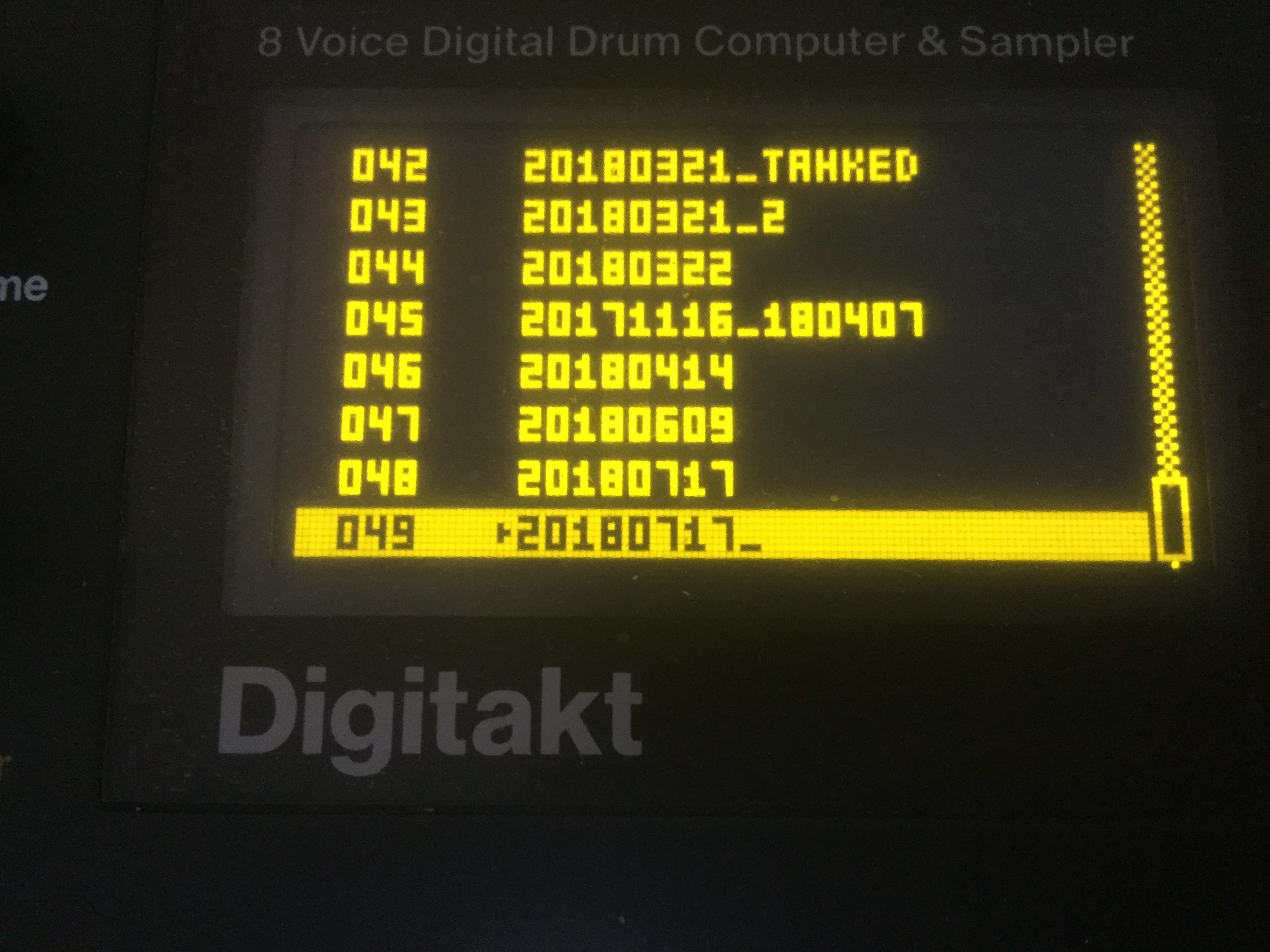
it’s only when you have saved the the project that the current project is indicated.
thanks peeps, appreciate you walking this through with me.
All I know is any project I have saved to a slot is recalled anytime I resave and when I turn the power on whatever project/pattern was loaded last is recalled, it stands to reason that if you are being taken to slot 001 when saving you have either allready saved there(unlikely as I think its a locked project),are requesting a new save location for your current project or havnt saved the project you are in.
Do all the copies show up in the project list? and which one is highlighted when you power on the machine and go to load project?.
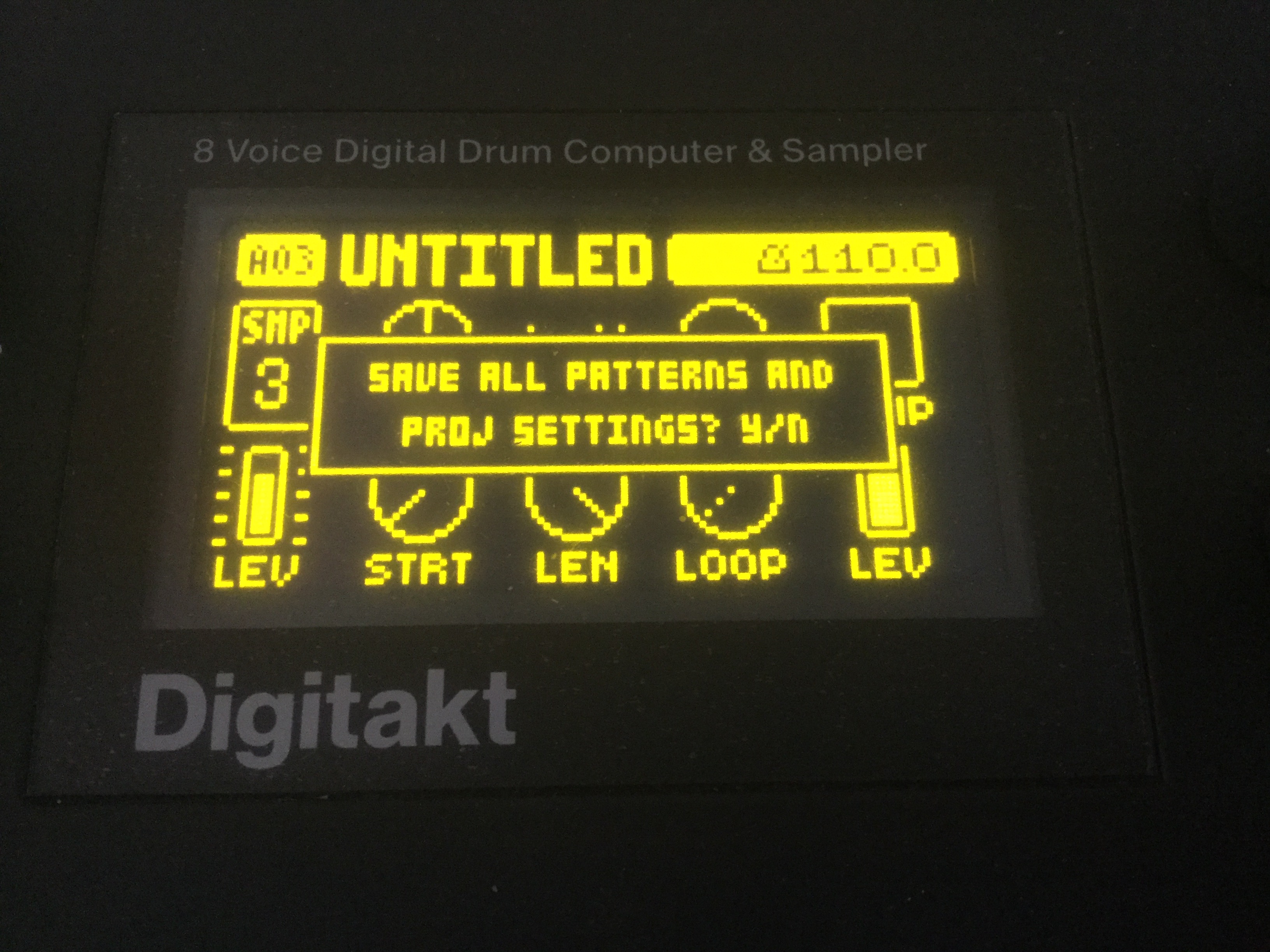
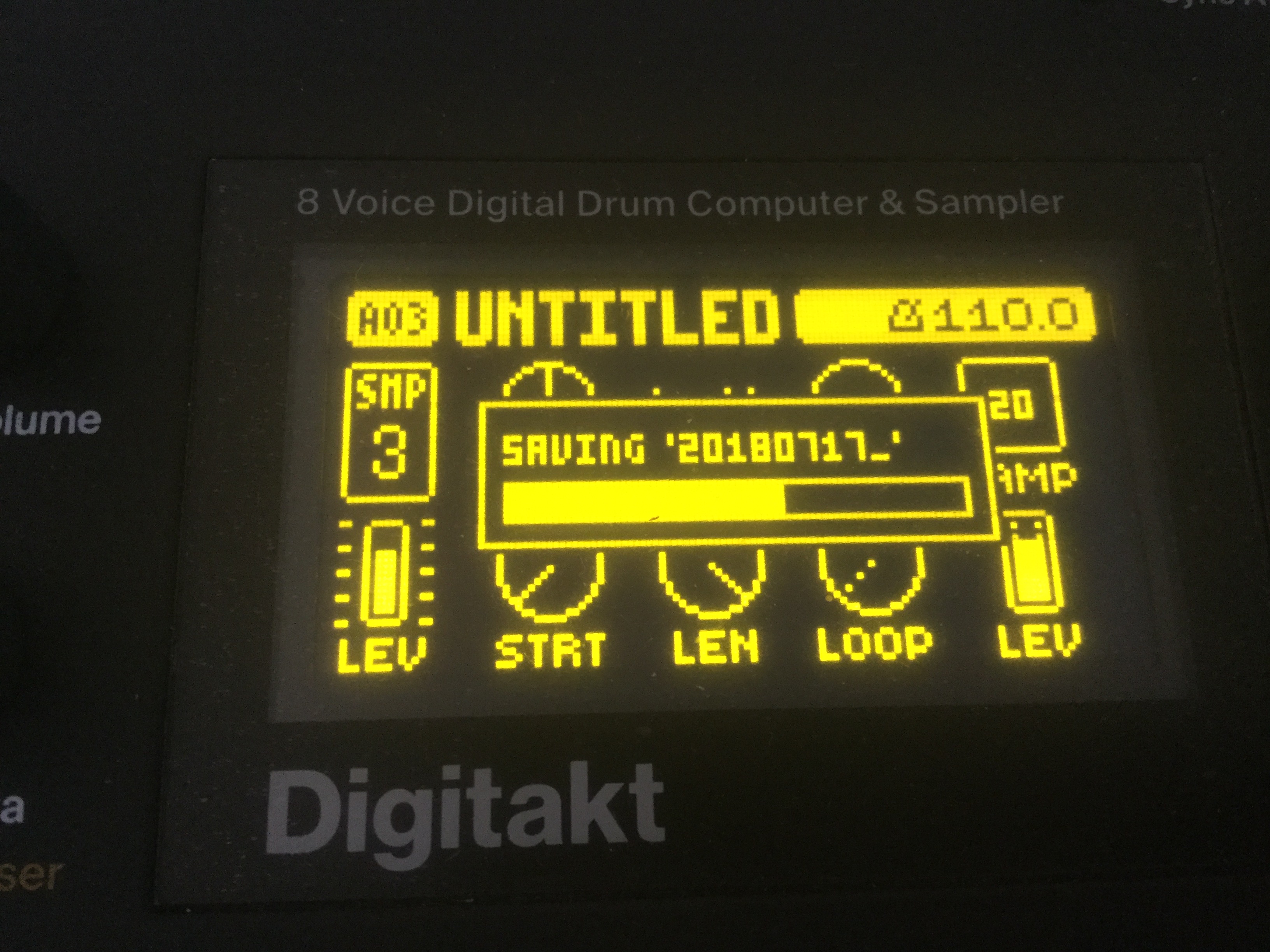
@jefones when i went to use Func+setup (save project) there wasn’t any indication of which project i was saving to. I have a list of projects it there was no little tick against the name, only the first slot (001) was highlighted. (and this i no for sure ISN’T the project i have loaded).
In essence, there was no way to confirm which project i was working with, which means (to me at least) I can not be sure which project i am saving to. am i saving to the original version or the copied version?
i’m not sure what you mean about 001 being a locked project. (i’ve created a template for 001 as i’ve done with other projects, containing my own samples and not the DT INIT samples).
in my particular case, i am not working with 001. I am working with 002 and I made a copy of that 3 times. These copies now sit in 006/007/008.
When is use func+save (save project) all the projects show in the list, none of the names have a tick against it, only 001 is highlited. I know for sure I am not working with 001 because i know which samples i am using and 001 is different from 002 (001 is also different from 006/007/008).
Maybe you could try…
go into manage projects, find a project, use func+copy / func+paste to copy and paste the project (i did this three times. i now have 4 projects and i added a unique suffix to the name).
now go back out, play around with your project, then “func+save proj”, does it highlight your project, is there a tick against it to show which project you have loaded? Are you in the original project or are you in one of the copies? Can you be certain you are not overwriting the wrong project?
what i am saying is - it would be great if there was a way to see the project name, like you can with the pattern name and sample name.
this wasn’t what i was getting for sure. certainly the active project wasn’t indicated as it is in one of your pictures (i think the third pic) with the little arrow >. in my case there was no way to know which project i was working with or overwriting.
of course now, when i’ve gone to switch the DT on again there is the small arrow against the project, which means i now know what project i am in and where i can safely save.
I’ve probably done something funky with the copy project / paste project function, but if i can recreate it i will try to grab some pictures.