So I’m trying to find a way to configure this hybrid setup, but something’s wrong with the sync, I’m probably missing something as I’m not very familiar with Overbridge (just using it for audio/midi).
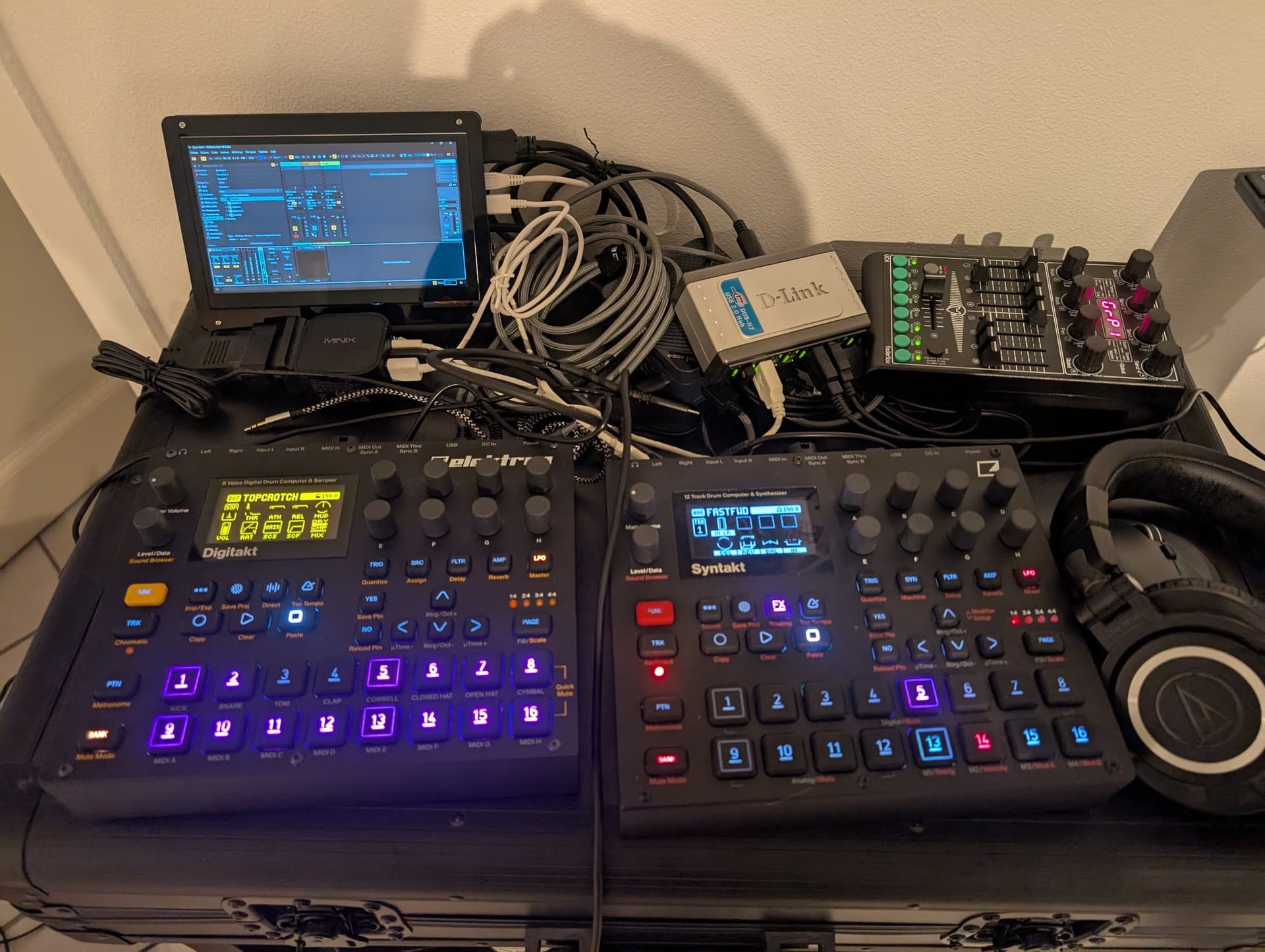
So I have:
A ST, set as master for tempo/transport (send clock, transport)
A DT, set as sync slave (receive clock, transport)
Ableton Live 12 on Windows 11, set as slave (ext sync, with ST sync/remote enabled)
Both digis in overbridge mode, ST set as audio in/out (audio card) and DT as overbridge instrument
Temp setup to illustrate while trying to make things work:
Either DT or ST as master to control sync and transport
Everything else to play in sync (other digi + Ableton)
So far:
Ableton is in sync with the ST transport wise, but the tempo is not acting good:
when not playing, tempo is perfectly in sync
when hitting play on ST, temp sometime’s in sync, sometimes randomly struggle (start at 50 or 500) then slowly catch up to sync
DT in addition to the Ableton tempo issues, sometimes does not start in sync and have random delay before starting.
I even tried disabling all midi in Ableton and using a midi cable between ST->DT but it seems whatever midi setting is set on DT (midi from cable only not usb in settings) behavior doesn’t change as it seems overbridge midi always take over.
My setup I doesn’t look complicated, but I fail to understand why the transport seems to mess the tempo up in this config, and what I can do to prevent it
Any ideas?
Edit: found the overbridge to disable all midi on DT, so now at least the DT is perfectly synced. Still I don’t understand why the tempo jumps with Ableton on play start… And there no overbridge midi options for ST when use as sound card.
I suggest Ableton as master (only via OB - not Ableton midi settings, as stated in the manual) and keep the play button off in Ableton. I could not get Ableton to gel with external sync no matter what I tried. That way you can start all the hw sequencers using one device via regular midi chain and OB provides tight sync.
That’s what I’m trying to avoid, as I have patterns with different tempo, and also because in the final setup I won’t have a screen and Ableton will be used headless.
It seems Ableton external midi sync is dodgy but I can’t figure out why
You could create a live template for the gig on the timeline, automating project bpm and changing pattern.
It seems to be general consensus from what I’ve read that Ableton does not like to be slaved.
I remember that it worked better with regular midi than it works with USB, at least clocked from Elektron devices. No idea how OB would like that though.
I vaguely remember using DN1 with midi out to my interface and clocking Ableton so I could play and stop using the Digitone. It wasn’t working like it does now with the new digi line where you can start and stop with Ableton play button off. It was fine and no drift if I remember correctly. I might be dreaming (maybe I had only transport on and OB was still providing clock). Worth a try if you have an interface.
I don’t want Live as midi master, in my setup it’s only used as an end-of-chain pedal.
I think I figured out why tempo is jumping on start: ST seems to reset midi clock and retrigger when you press either start or stop button, making the tempo jump for a few seconds.
Seems weird that Live doesn’t reset midi clock when receiving start/stop commands, but as it’s only a few seconds I can live with it, and use wired midi directly from ST to sync my other devices.
For completeness I tried all modes indicated in this post: Ableton as clock slave drift - SOLUTION - #4 by Schnork but the default one seems to work the best. “bad” midi clock made the clock less jumpy but also less reactive on tempo changes.
FWIW I have never managed to get Live to play nice as anything other than MIDI clock master. The most reliable fix in a hybrid setup is to use an external clock device with sample-accurate sync from the DAW via a MIDI clock plugin like ERM or Nome.
Yes, for the performance FX (delay, looper etc). But since the drift only occurs on the first seconds after start, it’s not really an issue now that the DT is syncing through cable and not overbridge.
I use Ableton with a DTII in Overbridge. Ableton is doing nothing else but effects and processing. The setup is headless.
You can try all you want to get this working with external sync but countless others have gone down this road. It is truly a pointless endeavor.
The only advice here is to use Ableton as master clock. If the issue is that you’re headless and need to start/stop transport without a keyboard and monitor, grab a cheap an simple MIDI controller and map the transport controls. I’m sure you would also benefit from being able to control your effects sends from that same controller.
When I was using OB, I had OB on No Sync and synced all my HW machines via MIDI cables with one of the Elektron as Master. I was then matching Ableton Live to the tempo of the Master. It was important to me to start/stop the machines via an Elektron box.
I happened to be reading the Live 12 release notes recently and noticed there were some changes to sync.
Added a Resync External Hardware option for sending resync messages to clock-synced hardware. When Sync is enabled for a device, you can set the resync behavior using the drop-down menu in the MIDI port’s output via the Link, Tempo & MIDI Preferences. In the same Preferences page, you can also enable the Show Resync Button option, and a Resync External Hardware indicator will be displayed in Live’s Control Bar.
When Live is synced to a MIDI clock leader, the latency between the leader and Live is reduced and no longer changes with the tempo. While the fix results in a more stable latency, it may change timing in old Sets where Live was synced to an external MIDI clock source, so the -UseLegacyExtMidiClockIncrement option can be added to the Options.txt file to revert to the original behavior.
The Resync hardware option in Live v12 is helpful. It basically resets MIDI clock sent from Live to a hardware device at the beginning of each bar. So where you have hardware that’s lagging or experiencing MIDI jitter when clocked from Live, at least it is pretty tight on the 1 of each bar (even if it’s then sloppy for the remaining 15 16th notes of each bar).
It’s not as good as using an external clock device like a Nome or ERM/FP Multiclock but it’s a lot better than plain vanilla MIDI clock from a DAW into hardware where drift over time will make sync impossible by the time you’re 8 or 16 bars into a track.
Going the other way (ie hardware as master sending clock into Live with Live as slave) is still pretty flaky IME. Live essentially listens to the incoming clock and tries to track against it. Even a super solid and reliable clock like an Elektron box (er… not including Tonverk in this scenario ) will produce glitches and timing anomalies in Live. Not really usable IME.
You could get something like Launch control XL3 which has a screen and set the tempo using it. It’s great with Elektron boxes as well and would double up as DAW FX controller.
I simply mean midi mapping some encoder to control the tempo in Live.
One more idea is to write a small script in python that increments the mapped CC values by 1 and use some cheap keyboard to increment/decrement the tempo per button press. You would still need the screen to see the actual values but it wouldn’t probably be as bad as having to use the small touch screen (actually, you could see it change on your elektron so no screen necessary!).

 ) will produce glitches and timing anomalies in Live. Not really usable IME.