Pissed me off that using an RME UCX II as USB audio interface with the Live 3 results in frequent metallic glitchy sounds. Bought a Focusrite Scarlett 18i20 4th gen and all good.
Every pad is independent & only has access to 1 quadrant so it still adds up to 64 sections. It can’t all the new fancy MPCe slides & they the pads are divided via plastic gaps. For the F2 they should remove some the gaps to form a 4x4 grid with each section is made up 4 Force pads, but then have a Pad mode & a Quadrant mode & now you have a MPCe device with wider pads.
I agree about making the MPC pads bigger if this is what they were planning, but even on the Force pads I only need half of it, tho it currently lets me play 1 pad with 2 fingers (usually my 2 index fingers) in a way I can’t with just 1 finger. Even that may not matter after getting used to it.
When I fixed my 2500 about a month ago I found it harder to play & to make mistakes on it because the pads were bigger - so there’s that, but even that is mainly a rust thing, then I fixed my 1k & post a video the other day & I think those pads are the perfect size or at least the best compromised.
1 Like
Don’t forget the OS 3.10 bug fixes!:
General:
• Tapping and then releasing a dialog’s F-Keys after it has been dismissed no longer causes a crash
• Making a change to tracks or changing the current mode during playback no longer has a risk of crashing
• Improvements to performance when changing sequence during playback
• Fixed issue causing certain audio interfaces to not function
MIDI:
• Pad input is now routed correctly to all tracks set to receive it
• Using Note Repeat now correctly respects MIDI input channel settings
• MPK Mini MKIV: Note-off messages now record and playback correctly
• Notes with MIDI channels set to anything other than 1 no longer hang when stopping playback
• Per-clip program change messages now send correctly when clips are launched
• MIDI input is now received correctly after disconnecting and reconnecting MIDI devices
on Windows
• Global MIDI learn no longer causes audio device failure on desktop
Export:
• Bouncing a clip twice no longer results in silent audio
Controller Mode:
• Using an external drive as the Temporary File Location no longer has risk of deleting user data on the drive
• MPC XL / MPC Live III: No longer a risk of data corruption to the internal drive when in controller mode
Desktop:
• Logging in on startup page now also logs in for Activation page
• Project panel no longer hides after switching to and from a mode where it is not available
• Starting playback while drawing automation no longer results in a crash
• Channel strip components in Mixer views now show/hide correctly after switching modes
• Track Length in Inspector panel can now be adjusted with more precision
• Selecting a track in Track Mixer now correctly sets it as the current track
• Right-clicking an empty track name in Inspector panel no longer causes a crash
• Grid and timeline now remain in sync after using scrollbar
• Kontakt instruments using tempo-based loops now sync correctly to MPC’s tempo
• VST3 plugin editors are now displayed correctly, without any black bars around them
• VST3/AU AIR plugins now display their editors inside the Track Edit panel
• Improvements to appearance of the Preferences dialog
• Fixed issue on Windows where after a crash, MPC failed to reopen
Main Mode:
• Auto-scroll of waveform view now functions correctly
• MIDI input channel is no longer changed when changing track type
• Recording to a new clip then disabling Loop no longer results in a crash
• MIDI Output combobox in Track Settings can now be edited as expected
• Channel Strip MIDI meters now function correctly for all tracks
• Track Length setting can now be edited as expected after using Copy Sequence
Arrange:
• “ALL TRACK TO ARR” F-Key now correctly shows if only bus tracks are returnable to Arrange playback
• Per-track “Back to Arrange” buttons always act on correct track after tracks have been reordered
• Extreme changes in zoom no longer risk a crash
• Locking zoom levels now works correctly
• Using Trim on a sequence now correctly clears events after the trim point
• Correct region of grid is now shown when triggering Locators with Auto Scroll set to Page
• Now possible to scroll while cursor is over track headers
Recording:
• Recording audio to end of sequence now places recorded region at correct time
• Previous audio no longer plays after recording over it with Loop enabled
• Recording to end of sequence with Loop off now extends sequence correctly
• Overwriting automation now works correctly for all parameters
Saving and Loading:
• Loading a Drum track containing an AIR Reverb Pro insert no longer causes a crash
• Project/Track load failure messages are now correctly formatted
• Correct error message now appears after loading project with missing data folder
• Clip Row tempos now load as the correct values saved with the project
• No longer possible to overwrite existing sequence data when loading a MIDI file
• Prompt to save project with unsaved changes now appears consistently
• Saving as Ableton Live Set (ALS) no longer risks crashing
• After loading a project using the Touch Strip in MIDI Control mode, it now outputs MIDI correctly
• Cancelling a project save now works correctly
• Samples that are in multiple audio clips no longer get deleted if another sample is loaded to one of the clips
Grid View:
• Pitch Quantize no longer allows notes to be transposed outside the standard pitch range
• Grid lines now align consistently in long sequences
• Playback of track using Independent Track Length no longer causes visual glitches
• Playback outside of Loop region no longer causes visual glitches
• Playhead position now remains correct after disabling loop just before the loop ends
List Edit:
• Changing a note’s Channel from List Edit no longer makes the note disappear
Browser:
• Pad Presets now appear correctly in the Browser
• Browser directory no longer reverts to Splice after switching mode and back
• Typing “[“ or “]” in plugin search no longer results in a crash
MPC as a Plugin:
• Logic Pro: Switching windows then clicking on a plugin’s editor window no longer causes a crash
• Logic Pro: Plugin editor windows are now displayed correctly
Sampler:
• Sampler “ARM” button can now still be used after purging the Sample Pool
• Redoing an undone Auto Sample now returns recorded samples correctly
• Crash no longer occurs when saving audio sample after pad assignment
• Q-Links for insert FX in Sampler mode now function correctly
Sample Edit:
• Sample Start/End flags now always adjust correctly
• Switching between Trim, Chop and Pad tabs now always displays the correct sample
• Selected sample no longer set to None after converting slices to new Drum track
Track Edit:
• Enabling Loop on a sample during playback no longer causes an infinite loop
• Randomization settings for a layer now only affect that layer
• Undo now correctly undoes Loop start change when Loop Lock is off
• User Oscillator content with capitalized file extensions now appear as expected in user folders
• Change of Oscillator type with Edit All Layers active now only acts on the current layer, avoiding destructive changes to layers using samples
• Fixed issue with some AIR plugins and FX editors not displaying correctly
Song Mode:
• Changing tempo while playing back song no longer restarts playback
Q-Link Edit:
• Projects with FX params on Submix/Return/Output being modulated by Env Follower or LFO no longer crash when closing
• Changes to parameters in Pad Scene mode are now retained after switching pads
• Correct parameters are copied when copying an existing macro in Track FX Rack mode
Step Sequencer:
• MPC XL / MPC Live III: Last Step Mode dialog now correctly displays clip lengths
• MPC XL / MPC Live III: Starting playback and launching clips now plays from correct place when step sequencer is in Next Seq mode
• MPC XL / MPC Live III: Undoing/Redoing Clear Sequence using Next Seq mode no longer results in a crash
• Pads preview correctly when tapped in Pad Select mode
Undo/Redo:
• Undoing/Redoing of Duplicate Track no longer causes a crash
Sounds Mode:
• Project/Track Data folders no longer appear in Sounds mode
Preferences:
• “Write automation when recording” state now saves to preferences correctly
• Force ejecting a drive while a download in Activations is currently extracting no longer results in a crash
Force:
• Using SELECT and +/- buttons to Tempo Nudge now only affects the tempo
• Using Lanes (Mono) step sequencer mode no longer overrides poly behavior on a drum track
• Q-Links are no longer blank when showing bank 9-16 and switching to Mixer mode
• Pads from banks A-D can now be selected when creating Stems
• Correct number of CV ports now shown for Force
• Step Sequencer pads now respond correctly to changes in clip loop length during playback
MPC Studio MKII:
• Pressing Zoom no longer causes crash
7 Likes
been waiting for this day for years. This rules!
2 Likes
yes! I knew the previous behavior of giving me jittery nonsense when overwriting automation wasn’t intended
1 Like
Next order of business, make the biggest, most noticeable indicator on the screen to tell you that you are in fact still in automation mode. À la, Panasonic’s red frame when recording video.

13 Likes
Looks like more ‘under the hood’ stuff being optimized too:
Improved synchronicity between edits in the Sample Editor and the Samples/Oscs tab.
Q-Links don’t jump values as often when modifying parameters throughout the system.
That’s nice.
3 Likes
Hell yeah! & do this maybe in a different color for when “Edit Multiple/All” Edit Zones is on in the drum track editor. I stay messing up other pads.
We need to collect & vote on all the best requests (& worse bugs), then vote on the best of the best & then mass request it with for a week & on to the next.
I gotta edit & update my “Big-ass Wish List”, as Akai added mad sh*t to it, than we add to it & then we could vote on the best.
TEAMWORK!
The big list:
6 Likes
Since this behavior is still present in 3.10, it seems this isn’t actually a bug. Audio clips are also affected by the Prefs > Seq > Playback > Note Length setting. Setting it to Truncate Length prevents audio clips from overlapping when switching clips. I wish there were separate settings for MIDI and audio, though.
3 Likes
Some nice improvements on 3.10  none for step sequencer tho
  don’t care for the new mpk mini tbh seems cool tho
Well I stand corrected unless it did this before and I didn’t even know.
When in note seq pressing a step selects all the notes and if in grid edit you can just use the large encoder to adjust end of notes
So can just press a step and turn encoder to adjust note lengths. This was annoying me so much to do before, possibly I overlooked it and was possible before??
Maybe it’s new behaviour it selects all the notes in grid when pressing a step?
1 Like
The Select All was a Force feature that came to the MPC like 2 years ago. I remember I got into argument on reddit telling a MPC user to use that feature for something or whatever & someone telling me the MPC don’t have that. Then around that time the MPC got it, but I can’t recall the OS.
In the List editor you can hold Shift & select just the notes/pads you want to edit by tapping them. In 3.5 also added to the list editor the ability to edit different parameters per note/pad in the seq:
From the 3.5 notes:
"Modifiers in Drum and Keygroup tracks.
Each Note event can now contain a modifier value for each modifier type. Previously in Force each note could only contain a single modifier event. Each note in a drum or keygroup track can have its own value for each of the following modifier types
- Tuning(coarse)
- Tuning(fine)
- Cutoff
- Resonance
- Filter Env Amount
- Pan
- Level
- Envelope Attack
- Envelope Decay
- Envelope Release
- Sample Layer
- Sample Slice This gives you the potential to craft each note to have its own distinct sound and timbre."
3 Likes
The auto progress of the step sequence in note seq mode makes it difficult to try notes and chords badly
It would be far better to just hold a step and press the note or chord to enter on the step. That way you can play and choose the note or chord you want to enter and not constantly enter notes by mistake or have to exit seq mode to choose a chord
I’m going to contact support and put in request. At least an option to turn this 101 style sequencing off. Never understood why they choose this way as the main method to use the sequencer. It should be a secondary way if you want to try something different
Hi everyone,
Happy with the new arrangement editing tools that came with 3.10
I’m wondering now if there’s an easy way to create volume drops per track with automation in arrangement mode for drum or key group tracks (not audio tracks)?
I couldn’t find any obvious way in both global or track specific arrangement view.
Thanks for your help
It’s not!! That is just in note sequence for people that like the 101 way of working… just like Roland you can pick that way or the regular way! You can switch it back and forth the way you want, of course I forget how… but only because I never use that way…
3 Likes
Are you sure? I think it’s how note seq is it’s a 101 style sequencer. I can’t find how to change it. I want to play a note without it being entered automatically and moving to next step. Not sure why they would design it to be like an ancient sequencer from the 80s
This video on Pad Scene & Parameters mode might help.
You can the macros knobs to track vol & you can set up the Project#1 & Project#2 macros, each has 16 custom knobs. While the seq is playing you can turn on Write automation so it records your knobs & whatever other macros you mess with. Be mindful not to overwrite the data - unless you want to try again until you get it right.
2 Likes
You can use it just like you want, you just hold down the step and can try any notes you want as long as it is held down, it won’t go forward.
That doesn’t work for me it jumps to next step, you can press the lit up step to stop it adding notes so can hear the chord or note you want to add but once you press another step it activates it again
Thanks for this! I’ll give it a try as I’ve never heard of it.
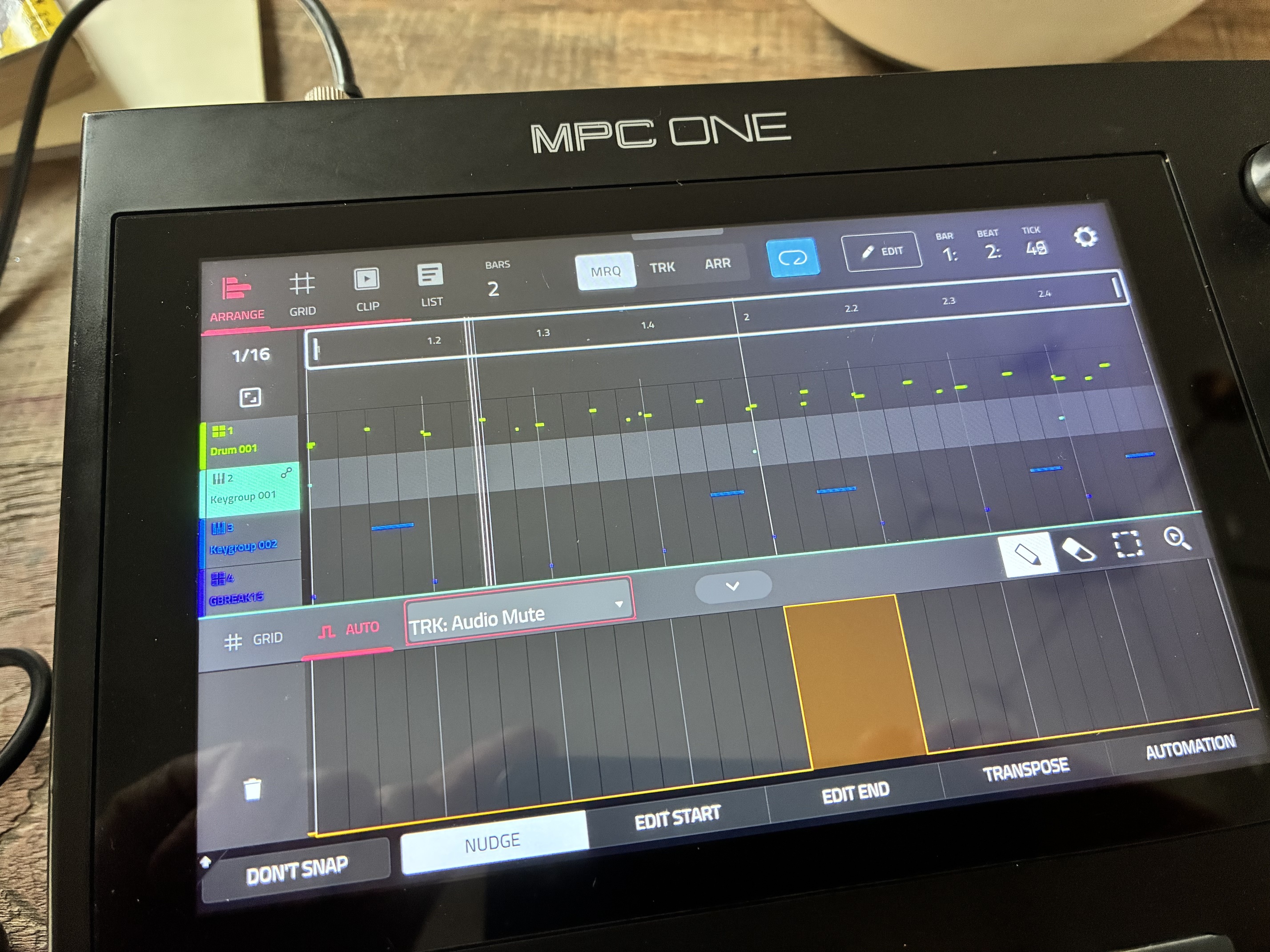
Did a bit of digging and found this menu on the arrangement mode which does exactly what I need = automated track mutes à la Ableton live (I said track volume, meant track mute, apologies)
Select a track, tap bottom arrow, double tap “velocity”, go to mixer, select track mute, draw the mute with pencil, et voila.
3 Likes