Also! The most recent version (2.7.3) has:
–Smarter voice tracking in poly mode
–Create your own directories on the M8 itself
–Boot Mode (extra settings, test your SD card performance)
9 Likes
oh nice  creating directories is very welcome
1 Like
Ive lost all GAS since getting it. Been spending hours a day on it writing tracks.
9 Likes
Got mine about a month ago, this is the first track I made while trying to learn it. Came out pretty good IMO, the sound you can get out of it without any post processing and just driving the limiter is really impressive.
14 Likes
Awesome.
Part of the reason I ordered is also to get away from the phone a bit more. I’ll substitute the senseless smartphone grab with the soon to be legendary m8-grab.
11 Likes
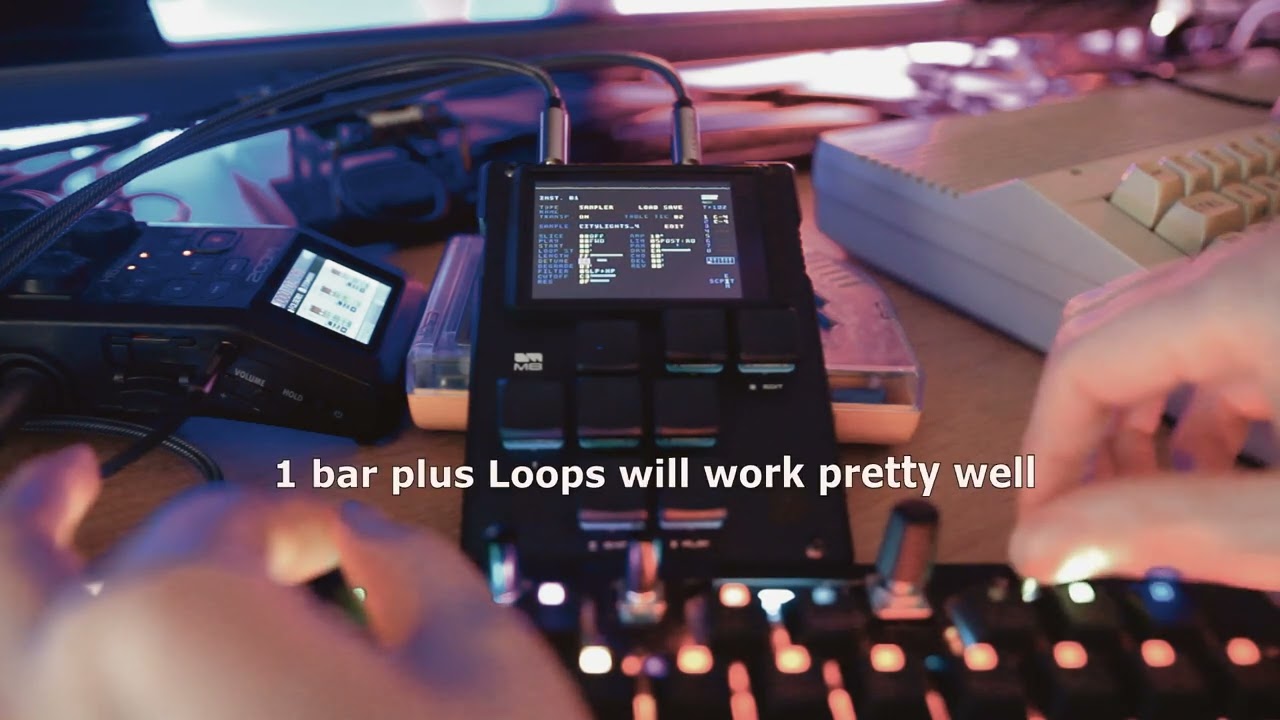
Super impressive simulation of tape warble:
14 Likes
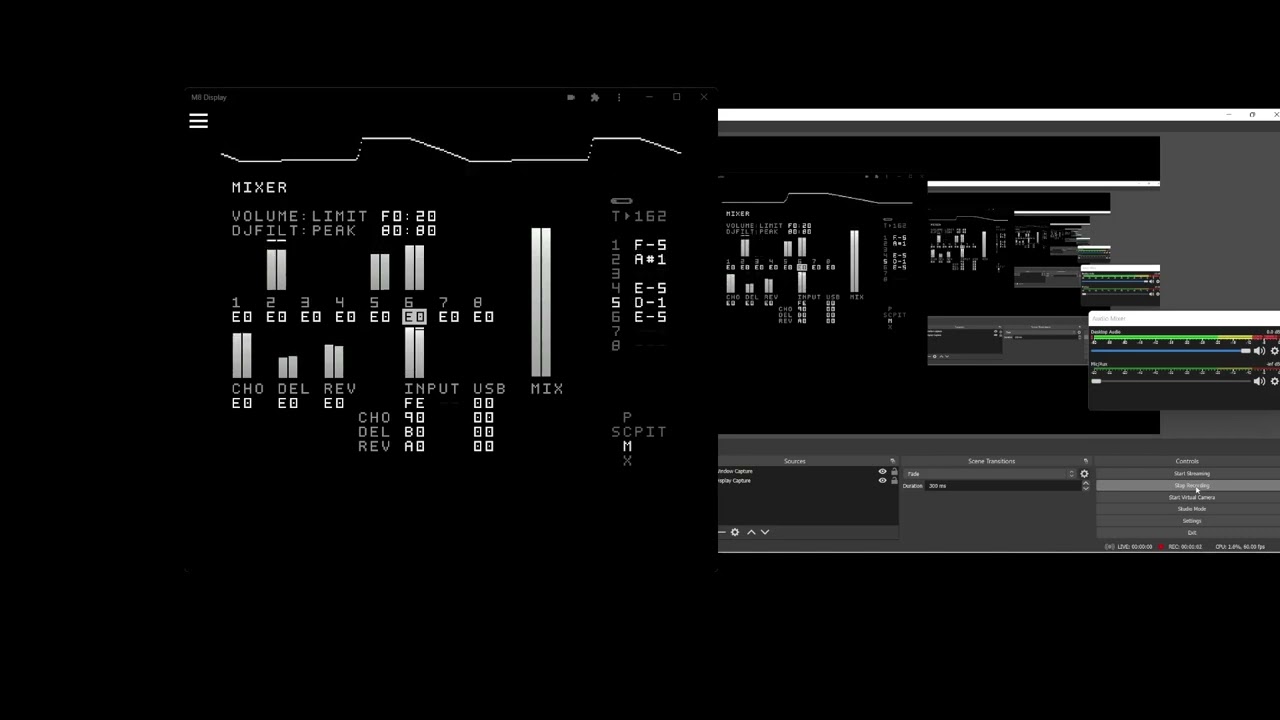
Thanks for sharing! Great overview. How did you get the M8 displayed in your video like that?
Dave Mech @ADE 2023 with a dual M8 live set
Thank you. I’m using this!
2 Likes
Got M8 headless working on steam deck!
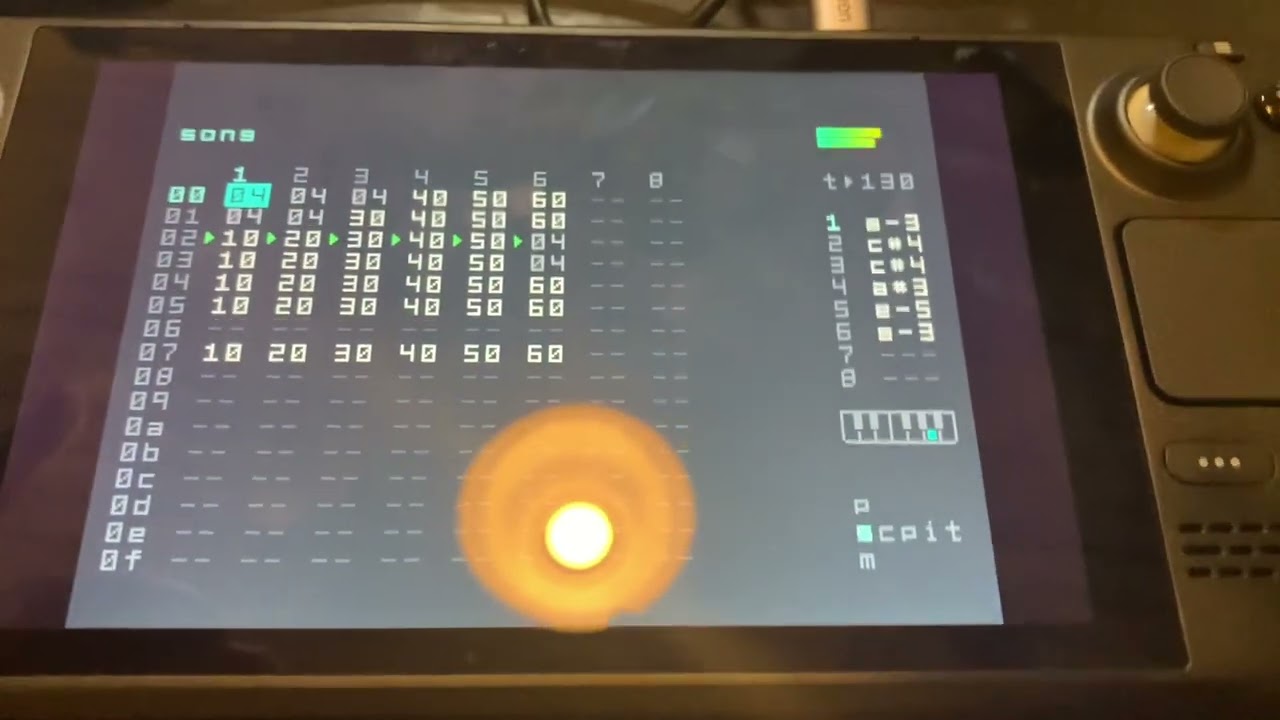
I’ve ordered an angled usb-c to micro usb cable for better portability. I only need a smaller case for the teensy but this works great.
9 Likes
Great work! Is it possible you make a more detailled tutorial how to do this?
I own the Teensy and also a Steam Deck.
wooooo! feels good to be back on digitone again!
where my IDM krew @(at)?!?!?!



9 Likes
I have written a little howto from memory. My command line history was a bit of a mess because of trial and error so please let me know if I got something wrong.
—at your own risk. Please read this document in full before you start. But if something goes wrong you can easily reinstall steamos
First of go to https://github.com/Dirtywave/M8HeadlessFirmware and read the setup guide to install m8 headless on the teensy
1.	-enter desktop mode on the steam deck

2.	-install qpwgraph from discovery

3.	-set a password for your steam deck
		$ passwd
optional: If you have an extra computer you can ssh into the steam deck.
Step 4 is optional and all further steps can be performed on the steam deck itself
4a. 	-start ssh server (disabled after reboot)
			$ sudo systemctl start sshd
	4b.	-find your steam decks ip
			$ ip address
	4c.	-connect to your steam deck with ssh from linux or mac, enter password when prompted(use putty in windows)
			$ ssh deck@STEAMDECK_IP_HERE


5.	-disable the read-only filesystem on your steam deck
		$ sudo steamos-readonly disable

6.	-initialize repo keys and populate repos
		$ sudo pacman-key --init
		$ sudo pacman-key --populate archlinux
		$ sudo pacman-key --populate holo

7.	-update & install dependencies
		$ sudo pacman -Syu
		$ sudo pacman -S base-devel make gcc git libarchive glibc linux-api-headers

8.	-clone the yay repo, give permissions & enter yay directory
		$ git clone https://aur.archlinux.org/yay.git
		$ sudo chown -R deck yay/
		$ cd yay

9.	-build and install yay
		$ makepkg -si

10.	-build and install m8c
		$ yay -S m8c

11.	-add user deck to serial group
		$ sudo usermod -a -G uucp deck

12.	-connect the teensy to your steam deck and check if it works
	-on your steam deck open a new terminal and type:
		$ m8c
	-m8c should now boot, controls should work, audio should not

13.	-click the speaker icon on your desktop menu bar
	-select speaker and internal microphone as default audio devices instead of m8

14.	-open qpwgraph from your menu with the teensy connected
	-make a connection from m8:capture_FL & m8:capture_FR to acp5x:playback_FL acp5x:playback_FR respectively
	-save to home directory or sd card

15.	-now audio should work, test and play!


16.	-enable the read-only filesystem on your steam deck
		$ sudo steamos-readonly enable

17.	you can find the executable binary called 'm8c' in /usr/bin/
	-copy it to your sd or home directory for convenience


18.	-while still in desktop mode open the steam application

19.	-click on add game or the plus icon in the bottom left corner in steam and select add non-steam game
	-click browse and select the m8c binary we copied earlier make sure it is selected
	-select qpwgraph from the list
	-click add programs to library

20. 	done!
	to use m8 headless on steam deck:

	-connect the teensy
	-set audio device in steam deck settings (speaker & internal microphone)
	-start qpwgraph from game library
	-press steam button & navigate to game library
	-start m8c
2 Likes
@Afronaut Thanks!
Can someone big brained help me calculate time signatures on the groove page ? I would love to make 7/4 and 5/4 or whatever without hop commands !
1 Like
So 4/4 is 96tics right?
96 divided by 4 is 24 so section everything up in 24.
if you need finer increments then section it up in 12
So as an example.
3/4 (6/8) 72 tics
5/4 120 tics
1 Like
Am I crazy or does a groove set to 8/4 swing like an MPC at 58-60%? I just sat there and punched in numbers that added to 12 and the recommended 7/5 was not bad, but I tried 8/4 and it was instant house. I don’t know WTF I am doing even though your explanation above makes sense.
I’m actually not sure what 8/4 would do to a rhythm. I mean it’s 4/4 but my guess it depends on how you section the rows
I.e
7
5
7
5
Etc.
Oh my… I just got a shipping confirmation! That’s so much earlier then I expected (September). Pleasant surprise 
10 Likes
I just use the regular settings and changed the main groove to 8/4. Honestly I struggle with this device to do things. Im not really a coder or great at math. I was always stronger on the writing side of the brain. Wondering if I can overcome the learning curve of this machine. Its tricky for me to learn. Ive been devoting a lot of time to it, but I am hitting a wall.
1 Like